Put your embroidery machine on Wi-Fi with a Wi-Fi bridge
For S1501-type embroidery machines that have a network socket. About 15 minutes, once.
Online, with any updates: autodst.com/bridge
A Wi-Fi bridge is a small box that joins your Wi-Fi and has a network (Ethernet) socket. Plugged into the machine’s network socket with a short cable, it makes the machine behave exactly as if a network cable ran all the way to your router. Nothing is installed on the machine and no Wi-Fi adapter is needed.
Tested with: TP-Link TL-WR802N (“N300 Wireless Portable Nano Travel Router”), on Amazon. Other bridges that have a “Client” mode should work the same way, but this is the one we bought and tested. We are not affiliated with TP-Link.
Why a bridge
On our machine a bridge worked better than the machine’s own Wi-Fi adapter: it is faster, the apps find the machine right away, and it answers at once even after sitting idle. Tested successfully with AutoDST Link on Mac and Windows and with the AutoDST app on iPad.
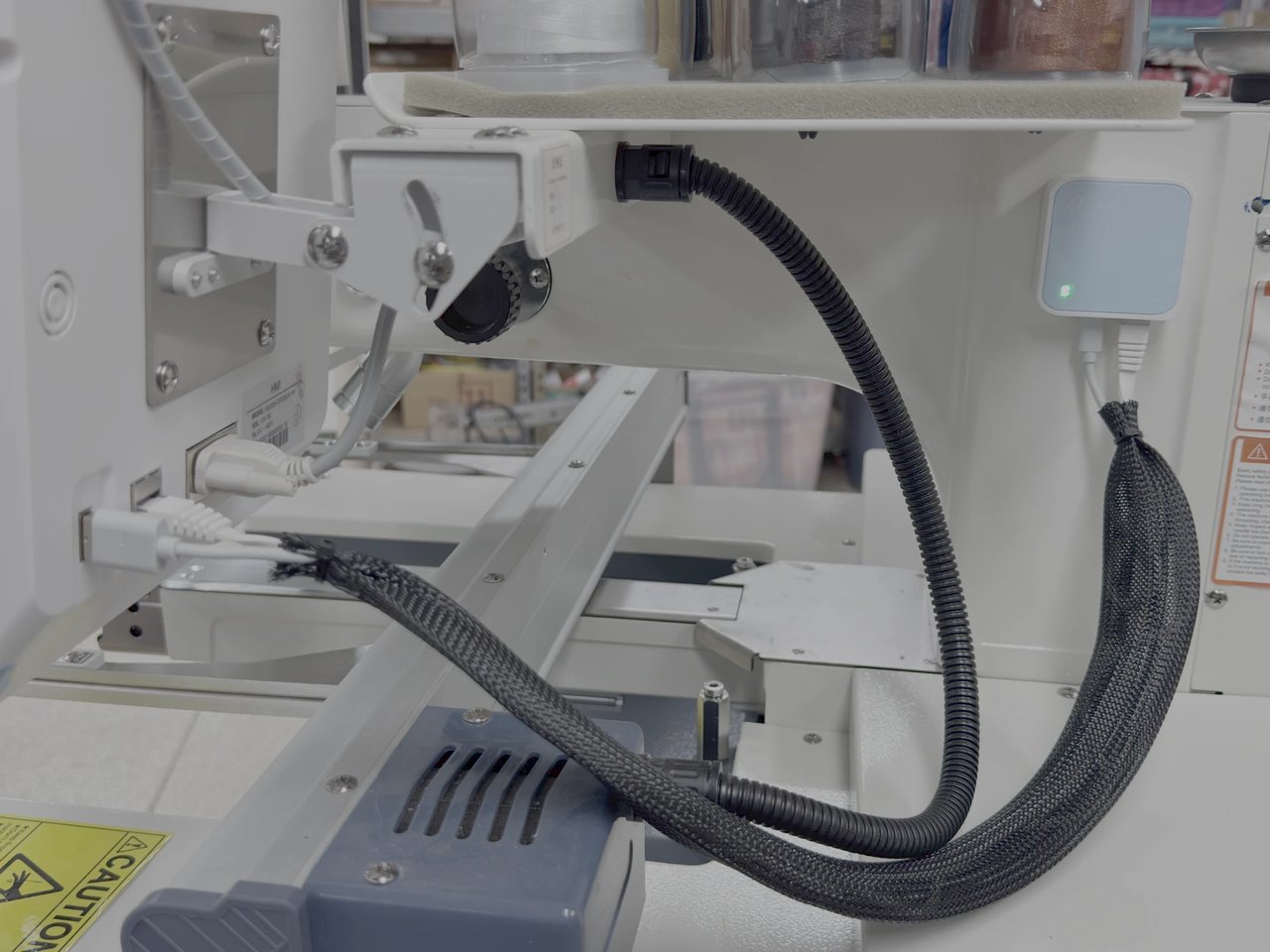
What you need
- The TP-Link TL-WR802N. Its box includes a short network cable and a USB power cable.
- The name and password of your main Wi-Fi network — not a guest network. Guest networks keep devices from reaching each other.
- A computer, phone or tablet with a web browser, for the one-time setup.
1. Power the bridge from the machine
- If the machine’s own Wi-Fi adapter is plugged into the USB port at the back (next to the network socket), take it out.
- Plug the bridge’s USB power cable into that port. The bridge’s light comes on; wait until it is steady (about a minute). The machine’s USB port powered ours with no trouble; a USB phone charger works too.
2. Set up the bridge (one time)
- On your computer, phone or tablet, join the bridge’s own Wi-Fi network: TP-Link_XXXX. The exact name and its password are printed on the bridge’s label.
- In the browser, type
http://192.168.0.1into the address bar. (The name tplinkwifi.net works too, but on a computer that also has a network cable plugged in it can open TP-Link’s website instead — the address always works.) - Create the bridge’s admin password. Choose your own and write it down; you only need it to change the bridge’s settings later.
- Choose Quick Setup, then Operation Mode Client — not Router, Repeater or Access Point. Client is the mode that passes the machine straight onto your network.
- The bridge lists the Wi-Fi networks it can hear. Pick your main network and type its Wi-Fi password.
- LAN settings: leave LAN Type on Smart IP (DHCP). The bridge then takes an address from your router like any other device.
- Check the summary and click Finish. The bridge restarts (about a minute) and its own TP-Link Wi-Fi goes away. Put your computer, phone or tablet back on your normal Wi-Fi.
Your router now lists the bridge as a new device. That is the bridge itself, not the machine yet.
3. Connect the machine
- Plug the short network cable from the bridge’s socket into the machine’s network socket.
- On the machine’s panel, open the network settings and make sure the machine uses its wired network. If it was set up for its Wi-Fi adapter before, apply (refresh) the network settings once so it switches to the cable. This is only needed the first time; after that the machine and the bridge come back by themselves when the machine is switched on.
- Leave the machine’s network setting on automatic. The panel shows the address it got (for example 192.168.1.…). If that address changes later, the apps find the machine again by themselves.
- In AutoDST Link (Mac or Windows) click Machine…, or in the AutoDST app on iPad tap Machine, and pick your machine from the list. If it isn’t listed, type the address from the panel.
Then click Test Connection, and send a small test design. That’s it.
If it doesn’t work
- Your router never lists the bridge: it didn’t join your Wi-Fi — usually a mistyped Wi-Fi password. (The bridge’s green light only means it is on, not that it joined.) Its own TP-Link_XXXX network comes back; join it and repeat step 2.
- The panel shows an address starting 192.168.0.: the bridge is handing out its own addresses. Open the bridge’s settings again, set LAN Type to Static IP with an unused address on your network (for example 192.168.1.253, mask 255.255.255.0) and DHCP Server: Disable.
- It worked before, and now the machine isn’t found: switch the machine off and on (the bridge restarts with it), wait two minutes, then apply the machine’s network settings again on its panel.
- The panel shows no address: check that the cable clicks into both sockets, then apply the machine’s network settings again (step 3).
- The app says it found your machine but you told it to forget that machine: if you used Forget on the cable machine before, pick it again under Machine… — through the bridge the machine shows up with its cable identity.
- Your phone or tablet finds nothing: it must be on the same main Wi-Fi as the bridge, not a guest network.
This guide shows what worked for us. AutoDST Link and the AutoDST app are free and come without network setup support; your router and the bridge are your own setup. The bridge holds your Wi-Fi password and its own admin password — choose your own and keep them safe.
More help: autodst.com/support